To amend a customer's details, click on the 'Amend User' sub menu link under the Users menu. You will then be navigated to a screen where you will need to begin by selecting the user you wish to amend:
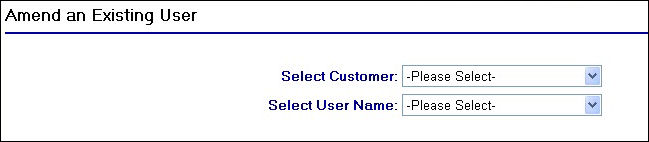
Customer and User drop down selection
As you can see in the screen shot above, you need to select the customer that the user belongs to and then the user name.
After selecting the user you wish to amend from the drop down menu, the page will then redirect you to the user's record so that you can then edit the details.
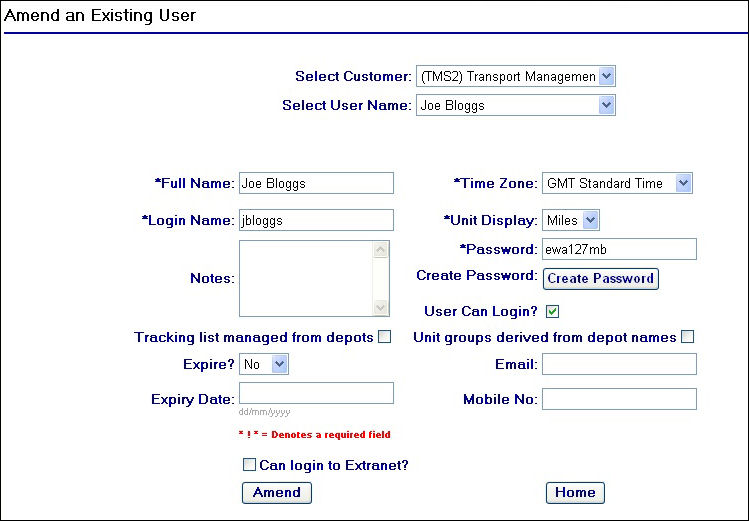
Amend a User Page
To amend any of the details for the customer selected simply edit any of the fields in the record and click on the  button.
If you have selected the wrong customer record or wish to navigate to a different customer record, simply select the correct customer from the top drop down field. When clicking the correct customer the page will automatically update and reload the correct information into the fields.
You can click on the  at any time to go back to the home page. This will not save any changes you may have made in the customer record.