There may be occasions where you find that you need to either add or remove one or many of the same units from multiple user accounts.
To perform such actions you will need to click on the 'Multiple Tracking List' sub menu item under the Users sub menu. This will navigate you to a screen as follows:
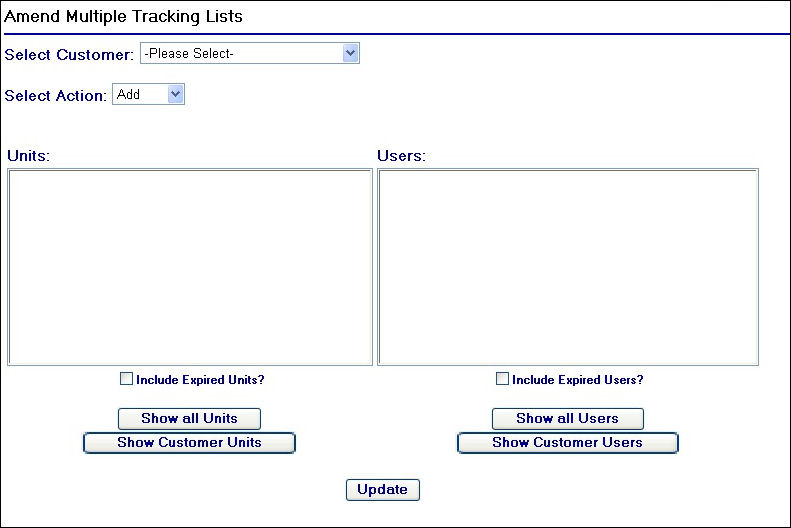
Multiple Tracking Lists Page
Similarly to the Single Tracking List page you will need to select the customer for the users you wish to amend. Note that you would not want to select a customer from the drop down field at the top of the page if you wanted to manage users lists across multiple customers (more will be covered on this later in this topic).
Once you have selected the customer from the drop down field, the Units and Users list boxes will populate with the respective data for that customer. You will now need to select the action you wish to perform from the 'Select Action' drop down field:
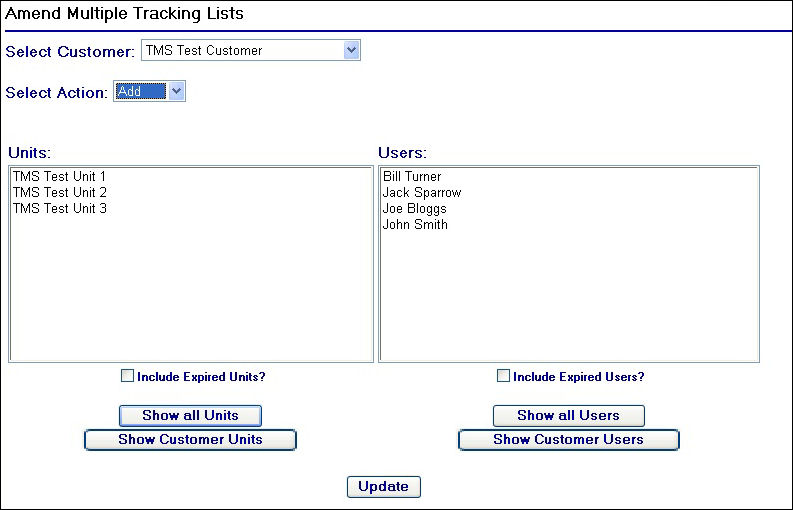
Selecting a customer and then an action to perform
As you can see there are no add or remove buttons such as those displayed on the Single Tracking List page. Instead this page works by selecting the action you wish to perform from the drop down on the page, selecting the units and the users and then clicking on the  button.
Also you can display expired units and users by checking the  and the
  check boxes respectively. To remove expired instances from the list boxes the simply ensure these check boxes are not checked.
As an example lets say you wanted to add all three units under the TMS Test Customer account to the users Jack Sparrow and John Smith you would need to perform the following steps:
| 1. | Ensure the Select Action drop down is set to 'Add' |
| 2. | Hold down the control key and click on each of the three TMS Test Units to highlight them all |
| 3. | Hold down the control key and click on Jack Sparrow and John Smith |
| 4. | Click on the button to complete the action |
On completion of the update you will be navigated to a confirmation page as displayed below:
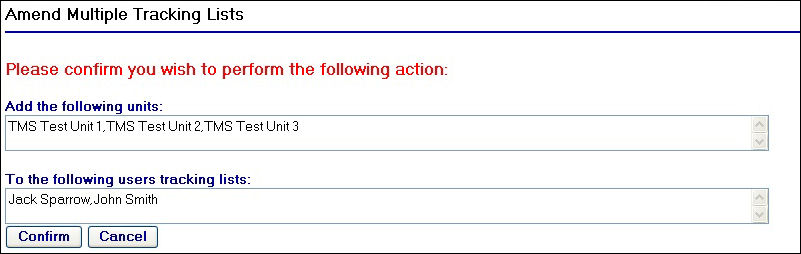
Amend Multiple Tracking Lists Confirmation Page
Clicking on the  button will return you to the main tracking lists screen with the selections you have already made.
Click on the  button once you are satisfied with the confirmation screen to complete the action. This will refresh the screen with a confirmation message below the and buttons as displayed below:
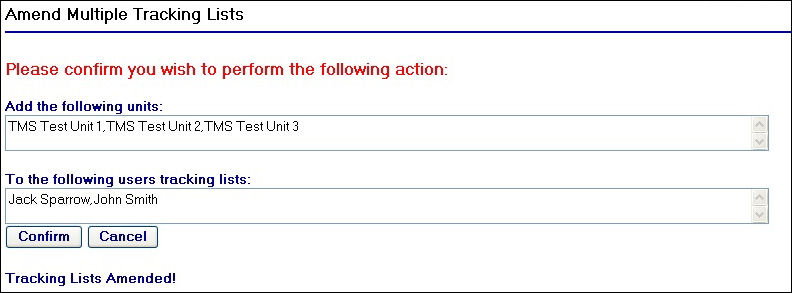
Tracking Lists Amended Message
Managing tracking lists across multiple customer accounts
As briefly discussed earlier on in this topic it is is possible to amend users tracking lists who belong to different customers.
In this situation this removes the need to use the customer select drop down field on the page and instead you would need to use the  button below the Users list box on the page to display all users on the system in the list box.
Similarly you can also select units from multiple customers using the  button which would then display all of the units on the system in the Units list box.