When creating new users on the system for a customer who already has users that belong to them, you may wish to copy the tracking list of an existing user to a new user you are creating on the system.
You could use the Single Tracking List screen and simply select the customer that the new user belongs to and then from the Available Units list select the ones they need to view and update their tracking list accordingly.
Alternatively, the Copy Tracking List page allows you to easily copy the tracking list from one user to another with minimal effort.
When navigating to this page from the sub menu you will be presented with the following page:
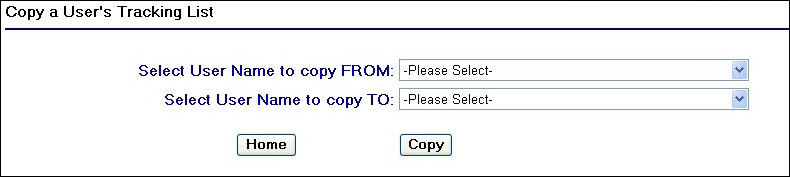
Copy Tracking List Page
As you can see there are two drop down field to select from. One to select which user you wish to copy the tracking list from and one to select which user you wish to copy the tracking list to.
To make selection of the users more simpler the entries in the drop down fields sort the users by the customers they belong to. For example the screenshot below shows how the users for the TMS Test Customer are displayed:
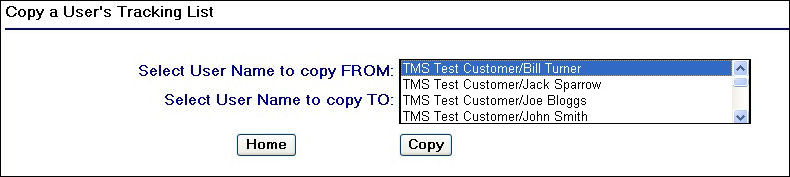
Drop Down Field Display
Once you have finished selecting the users you wish to copy from and to, click on the  button.
If at any point you wish to exit from the page, either click on a different menu link to navigate away from the page, or you can click on the  button to return you to the home page of the Extranet.
Once you have clicked on the button you will then be navigated to a confirmation screen as shown below.
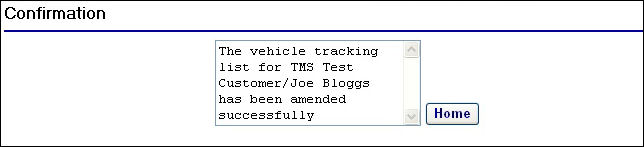
Copy Tracking List Confirmation Page
Clicking on the  button will return you to the home page of the Extranet.