To add a new user to the database begin by clicking on the 'Add User' sub menu link under the Users menu in the navigation screen.
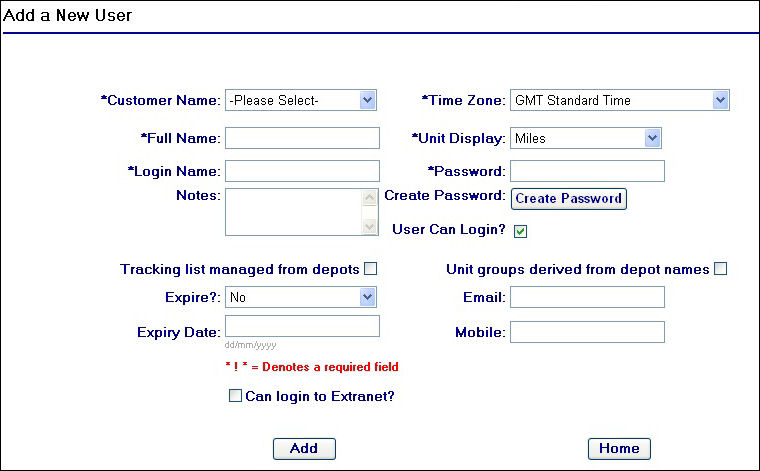
Add User Page
The above screen will appear where you can then proceed to entering in relevant information into the required fields. For help on what information should be entered in to these fields please look at the User Fields section on the next page of this help file.
After you have completed the required fields for the new user record, click on the  button to complete the action.
A confirmation page will appear as displayed below to show that you have successfully added a new user to the system:
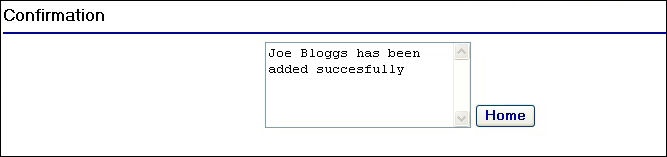
Add User Confirmation Page
Attempting to add a user who already exists
If you try to add a user who already exists on the system, you will be navigated to a an error page as shown below:
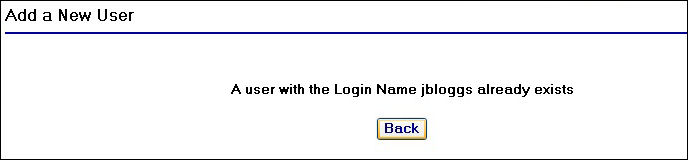
Add User Error Page
Clicking on the  button will return you to the previous screen where you can then amend the fields for the new user record you have just tried to add.