When a new user is created on the system, a default set of permissions will be applied to their account which will allow them to login to the website and view information only. For example they will not be able to create or assign geofences and placemarkers, nor will they be able to poll units in their tracking list.
To assign permissions to a user account click on the 'Manage Permissions' sub menu link under the Permissions sub menu, this will navigate you to a page as follows:
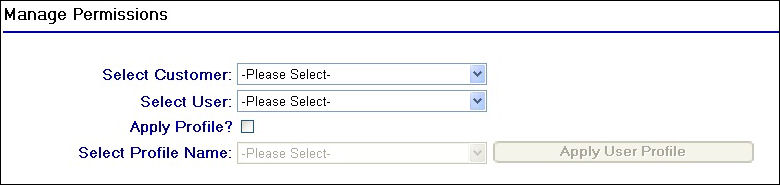
Manage Permissions Start Page
As you can see you are presented with the familiar drop down fields for selecting a customer and a user belonging to that customer. Once you have selected a user a permission grid will be displayed below the selection fields on the screen.

Permissions Page
As you can clearly see the permissions are categorised into groups, allowing the navigation around the various permissions more simpler. Those that are shown as checked in the screen shot above are the default set of permissions setup on a new user account when created on the system.
To amend a user's permissions on this page, ensure that the permissions you wish to grant the user are checked on the screen and then click on the  button. A message in bold red lettering will appear at the top of screen confirming that the permissions for the selected user have been updated.
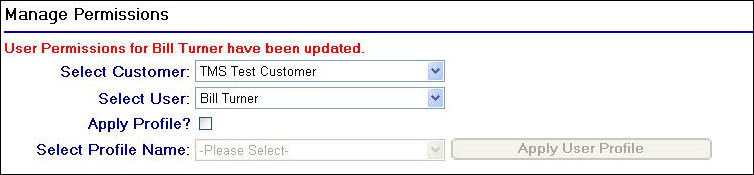
User Permission Confirmation Text
There are some additional fields on the Manage Permissions page which are related to the use of Profiles. This is discussed in greater detail on the Next page.