As well as standard tracking devices, the extranet also supports the creation of associated units such as RFID tags or Drivers. In the case of RFID tags, these are used to identify additional entities such as drivers (through the use of key fob driver tags) or trailers (through the use of ruggedised tags).
To add a new driver to the database begin by clicking on the 'Add RFID Tag sub menu link under the Mobile Devices menu in the navigation menu.

Add a new RFID Tag Page
A page will load as displayed in the above screen shot requiring you to complete a number fields to add the RFID tag in to the system. As with the Add a new Device page, you will need to enter a meaningful name in the 'Tag Name' field to distinguish the tag from others on the system.
Next you will need to select the tag type from the 'Tag Type' drop down field:
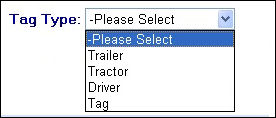
Tag Type Drop Down
For more information about which tag type to select expand the section titled 'Tag Types' below.

|
Having selected the tag type, you will next need to provide information about the tag in the 'Tag ID' field. This field records the tag's site code and ID which is usually printed on the tag itself in the format 'CSC = <sitecode> Tag ID = <tagID>'.
In order to enter these details into the Tag ID field you will need to use the following format:
<Site Code>:<Tag ID>
For example:

After naming the tag, selecting the tag type and entering in the Tag ID, you will then need to select the customer for which the tag needs to belong to and also any associated subscription details. If you are unsure of what to enter into these remaining fields then please refer to the Mobile Device Fields help page.
To add the new tag onto the system, click on the button, if at any point you wish to exit the page without saving any changes click on the  button