To assign depots to a particular unit click on the 'Unit Depots' sub menu link under the Depots menu.
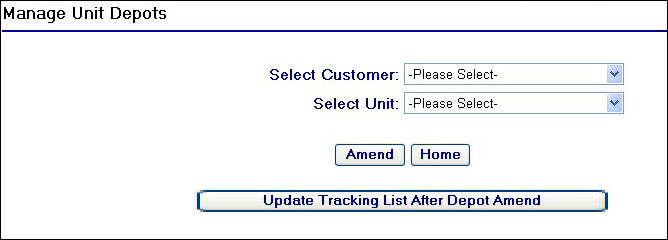
Manage Unit Depots Page
To start using this page, you will need to begin by selecting the customer that the unit belongs to and then in turn the unit you wish to manage depots for from the selection drop downs at the top of the screen.
As soon as you select the customer from the 'Select Customer' drop down field, provided that customer has depots created (see Add Depot help page), a depot check box grid will populate on the screen. As was the case in the User Depots help page previously, selecting the customer Antalis produces the following:
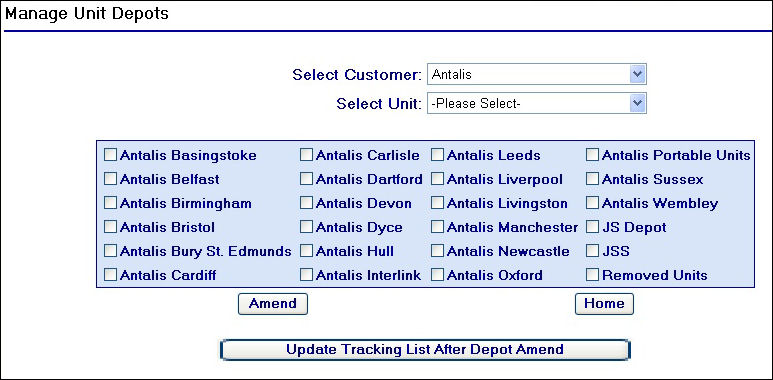
Antalis Depot Example
After selecting the customer, you will then need to select the unit you wish to amend. In doing this the check box list will update and display any depots that are currently assigned to that unit by checking the relevant boxes.
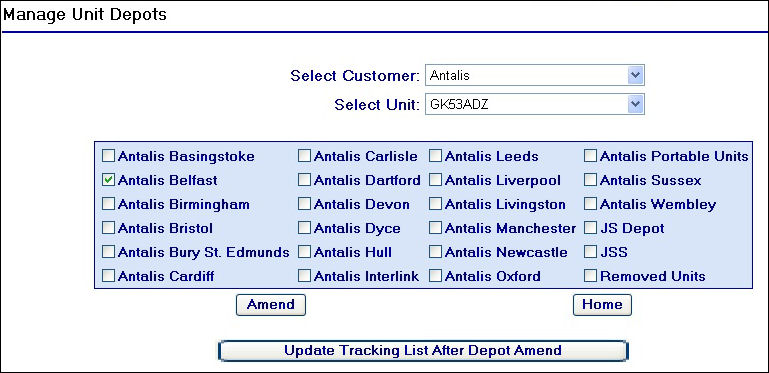
Selecting an Antalis unit
As you can see from the unit selection above, the Antalis unit 'GK53ADZ' is currently assigned to the Antalis Belfast depot. This means any Antalis user's that are assigned to the Antalis Belfast depot are able to view this vehicle.
To update the depots for a unit, simply check and un-check the depots for the unit and then click on the  button. The page will refresh, displaying the same fields and the checked and un-checked depot check boxes. This means the new depots have now been assigned to the unit, however the procedure is not quite completed.
For example, changing the depot assignment for GK53ADZ in the screen shot above from Antalis Belfast to Antalis Oxford will not mean that users who are assigned to the Antalis Oxford depot can yet see GK53ADZ. Nor will it mean that users assigned to the Antalis Belfast depot can no longer see the unit.
To enforce the changes across to the user's tracking list, click on the  button. This will ensure only users who are assigned to the depots that you have just assigned to the selected unit can see that particular unit.
A confirmation message will then appear below this button:
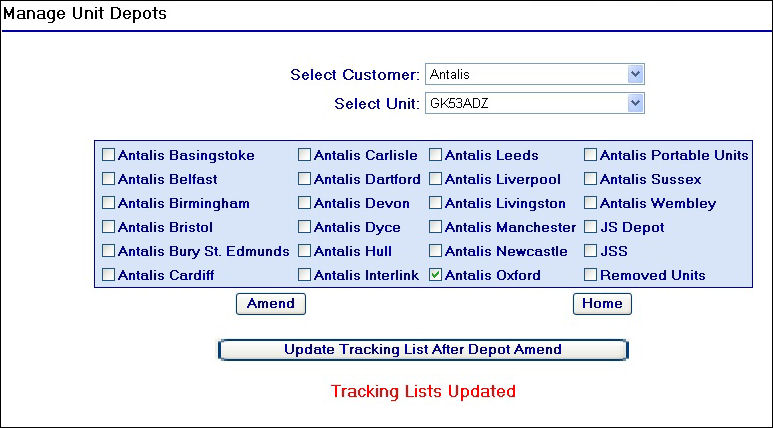
Tracking Lists Updated Message
Updating more than one units depot assignments
So far, updating one unit's depot assignment has been covered.
You can amend multiple units' depot assignments by performing the following actions:
| 1. | Select the unit |
| 2. | Select and de-select the relevant depots for that unit |
| 3. | Click on the button |
| 4. | Repeat steps 1-3 above for each unit you wish to amend |
| 5. | Click on the button |
| 6. | This will perform a bulk tracking list update for all users who have the 'Tracking list managed from depots' and 'Unit groups derived from depot names' checkbox fields checked against their user details on the system, ensuring that only users who are assigned to the respective depots you have assigned to the units can see those particular units. |