As already covered in the Add a new Device and Warranty Fields pages of this help document, the system allows for customer and manufacturer warranty details to be stored against units on the system. If at any point you need to amend the warranty details stored against a unit then you can use the 'Amend Unit Warranty' page of the extranet.
Click on the 'Amend Unit Warranty' sub menu link under the Mobile Devices menu to start using this page.
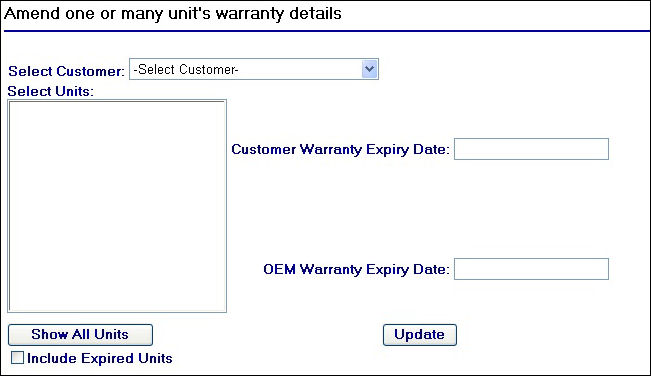
Amend Unit Warranty Page
Begin by selecting the customer for the unit(s) that you wish to amend from the Select Customer drop down field at the top of the screen. This will cause the 'Select Units' list box to populate with units belonging to the customer you select.
Note: If you wish to amend warranty details across multiple customers at the same time then click on the  button. This will display all units across the customer accounts on the system in the Select Units list box.
Once you have selected the customer from the drop down field, you will then need to select the unit(s) you wish to amend from the Select Units list box. To select more that one unit use the control key whilst single clicking with the mouse.
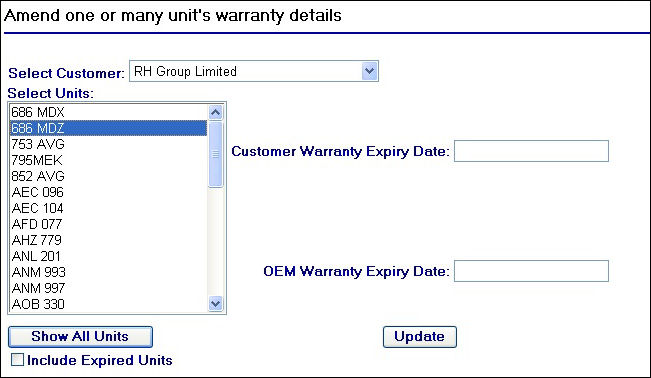
Selecting a unit to amend
Once the unit selections have been made, you will need to enter in the new warranty details into either or both of the 'Customer Warranty Expiry Date' and 'OEM Warranty Expiry Date' fields. If you leave these fields blank and try to update the selected units, any previously entered warranty details will remain, e.g. the units warranty fields will not get over written by blank data.
Once you have entered in the new warranty details that you wish to apply, click on the  button.
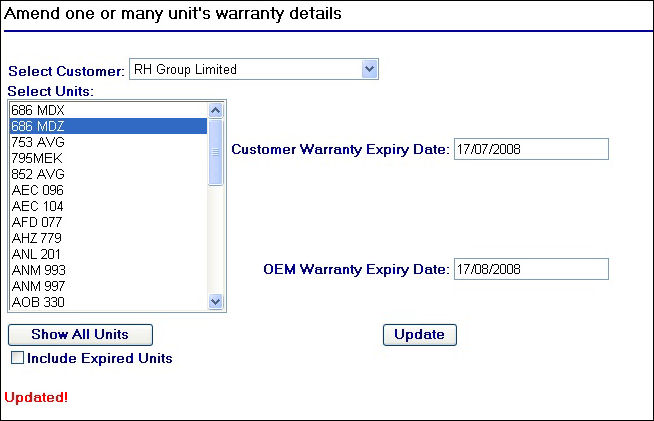
Updated Unit Warranty Details
A confirmation message will appear at the bottom of the page as shown above.
In the example of 686 MDX, the unit record will now display the warranty fields as follows:
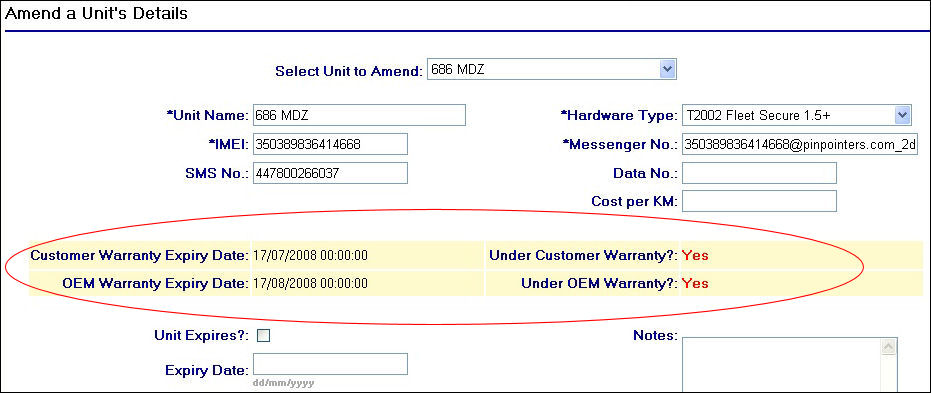
686 MDX updated warranty fields